
Google Review QR Code for Restaurants: Simple Setup That Works
A guest finishes their meal. The food was great, the service was warm, and they genuinely enjoyed themselves.
They mean to leave a review. They really do.
But then they get to the car, someone sends a message, the kids need something – and by the time they’re home, the moment has completely passed. Your restaurant stays at 47 reviews. The one down the road, with a QR code on their bill folder, gets three more that evening.
This is the friction problem. And a Google review QR code is one of the simplest ways to solve it.
Most guests won’t search for your restaurant again just to leave a review – it needs to be instant.
A QR code makes it instant.
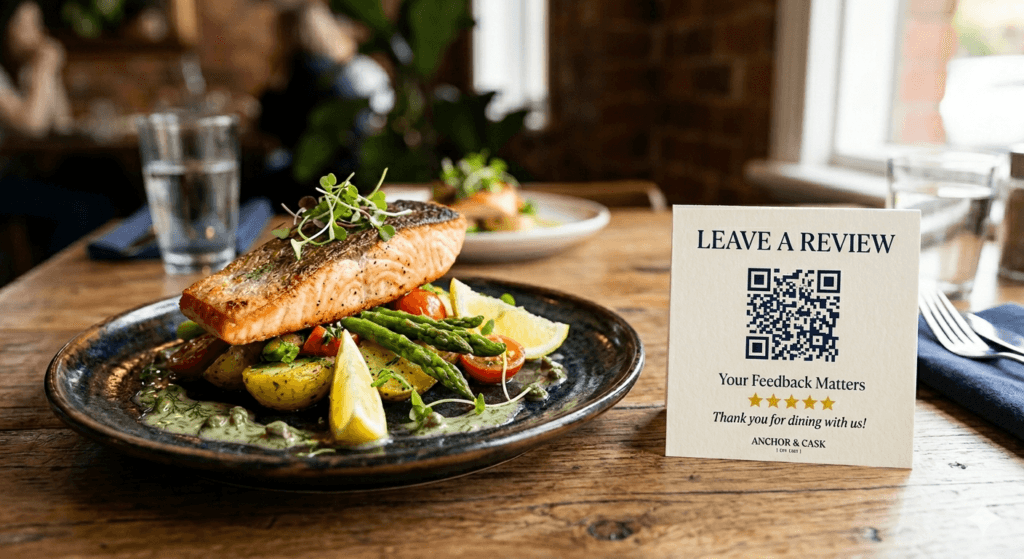
Why a Google Review QR Code Works So Well
It comes down to behaviour. When a guest is happy – relaxed, full, genuinely pleased with the experience – they’re in the best possible state to leave a review. That window doesn’t last long.
A Google review QR code for your restaurant puts the action right in front of them at exactly the right moment. They scan it, the review page opens immediately, and they’re one tap away.
| Without a QR code | With a QR code |
|---|---|
| Guest leaves happy but does nothing | Guest scans and reviews before they’ve left the table |
| They mean to search for you later | The review page opens instantly — no searching |
| The moment passes, the impulse fades | The experience is fresh, the path is clear |
| Reviews come in randomly, if at all | Reviews come in consistently, at the right moment |
| You rely on guests remembering | You remove the need to remember at all |
Most guests check their phone at some point during or after a meal – while waiting for a coffee, reviewing the bill, or winding down before they leave. A well-placed QR code meets them exactly there.
How to Set Up a Google Review QR Code for Your Restaurant
The whole process takes about five minutes. Here’s how it works, step by step.
Step 1: Get Your Google Review Link
Before you can create a QR code, you need your restaurant’s direct Google review link — the URL that takes someone straight to the review box, without any extra steps.
How to find it:
- Go to Google Business Profile and log in
- Find your restaurant’s profile
- Click “Ask for reviews” (sometimes listed under “Get more reviews”)
- Google will generate a short link – this is your Google review link for your restaurant
Copy this link and save it somewhere. This is what you’ll turn into a QR code in the next step.
Note: The link Google provides is shortened and goes directly to the review form. Always use this one – not a link you’ve copied from your browser’s address bar, which can send people to your general profile instead.
Step 2: Create Your QR Code
Once you have your review link, creating the QR code is straightforward. There are several free tools that work well:
- QR Code Generator (qr-code-generator.com)
- Adobe Express – free QR code maker
- Canva – has a built-in QR code tool
- GoQR.me – simple and free
How to do it:
- Open any of the tools above
- Select “URL” as the QR code type
- Paste your Google review link
- Generate the code
- Download it as a high-resolution PNG or PDF — you’ll need this for printing
This takes about one to two minutes.
One tip on design: Some tools let you customise the colour or add a logo to the centre of the QR code. Keep it simple – a clean, high-contrast code (dark on white) scans most reliably. Fancy designs can sometimes make codes harder to read, especially when printed small.
Step 3: Test the QR Code Before You Print Anything
This step is easy to skip – don’t.
Before you print 50 copies or laminate anything, test the QR code on your phone. Open your camera app, point it at the code, and check:
- Does it scan cleanly?
- Does it open the Google review page directly?
- Does the review form load properly on mobile?
Test it on more than one phone if you can – Android and iPhone both. A code that works perfectly on one device should work on all of them, but it’s worth checking before you commit to printing.
Step 4: Place It Where It Makes Sense
This is where most of the value is. A QR code that no one sees – or that’s placed at the wrong moment — won’t do much.
The best placements for a restaurant:
Bill folder or receipt
the moment payment happens is a natural pause. Guests are already looking at the table, phone often nearby.
Table card or small tent card
visible throughout the meal, especially useful for guests who like to take their time
Counter or EFTPOS area
great for casual venues or anything with a pay-at-counter setup
Takeaway bags or packaging
for venues with a takeaway side; guests scan it when they get home
Back of the menu
high visibility, guests hold it for extended periods
What to write next to the QR code:
The code alone isn’t quite enough. A short, warm line alongside it makes a real difference. Something like:
“Enjoyed your meal? We’d love to hear from you – scan to leave us a Google review. It means the world to a small restaurant like ours.”
Or simply:
“Leave us a Google review – scan here.”
Keep it genuine, keep it short. The tone should feel like something a real person wrote, not a corporate prompt.
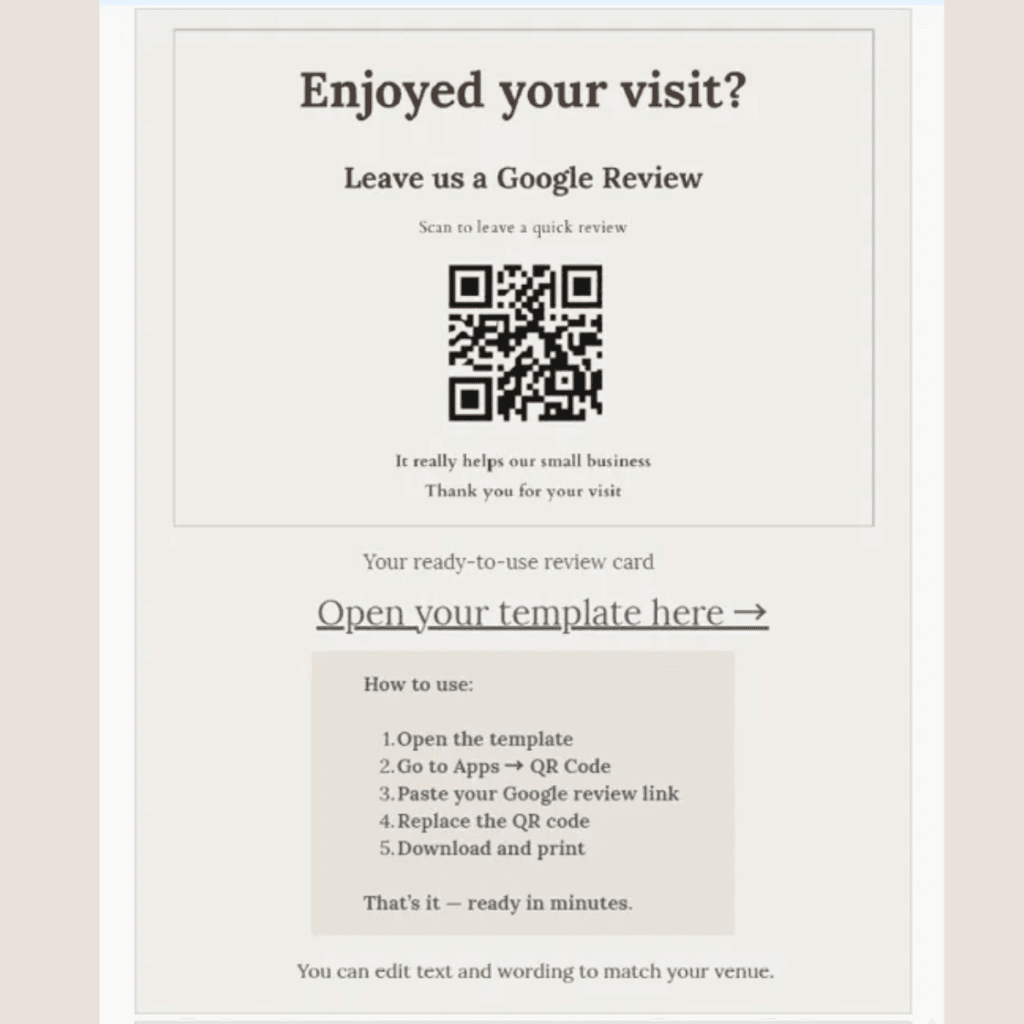
This review card template is included in the Google Review System for Hospitality Venues – ready to customise with your own QR code in minutes.
Where to Place Your Google Review QR Code (What Actually Works)
Placement isn’t just about location – it’s about timing.
The best results come when the QR code appears at a moment when:
The experience is still fresh
Right after the meal, or at the point of payment, the guest is still in your space and still in the feeling of the experience. That’s the window.
There’s a natural pause
Waiting for the card machine, waiting for a coffee, looking at the bill – these are moments where a guest’s attention is available.
It’s easy to see without searching for it
If a guest has to look for your QR code, most won’t bother. It should appear naturally as part of the table setting or payment process.
What tends not to work as well:
- QR codes on the entrance door or window (too early – the experience hasn’t happened yet)
- Codes buried in the middle of a busy menu page (easy to miss)
- A single small code stuck to one corner of a counter without any context
Think about the journey a guest takes through your restaurant – from sitting down, through the meal, to paying and leaving. The QR code should appear naturally at one or two of those moments, not just once and not everywhere.
Common Mistakes with QR Codes for Google Reviews
These are the small things that quietly undermine an otherwise good setup.
❌ Printing It Too Small
QR codes need to be at least 2.5cm x 2.5cm to scan reliably – ideally larger on table cards. Anything smaller and guests will struggle, especially in low light.
❌ No Context or Explanation
A QR code without a short line of text leaves guests uncertain about what it does. Always include a brief, warm prompt alongside it – even just “Scan to leave us a Google review” makes a difference.
❌ Placing It Where Guests Won’t Naturally Look
If the code is on the back of the menu and guests have already handed it back, it’s invisible. Think about what guests actually see and hold at the moment you want them to act.
❌ Not Testing It Before You Print
A QR code that links to the wrong page – or doesn’t scan properly – means every guest who tries it hits a dead end. Test it on your phone before you print a single copy.
❌ Only Putting It in One Place
One placement is a start. Two or three – bill folder, table card, counter – means more guests encounter it at the right moment, without it feeling pushy.
❌ Forgetting to Check It Still Works
If your Google Business Profile link ever changes, an old QR code becomes useless overnight. Worth scanning it yourself every couple of months just to confirm.
How QR Codes Fit Into a Simple Review System
A QR code on its own is a tool, not a system.
It removes friction – and that’s genuinely valuable. But without the right placement, a warm prompt alongside it, and a consistent approach from your team, even the best QR code will underperform.
The way I think about it: the QR code is the path. The system is everything that guides a guest to that path at the right moment.
That includes:
- Where the code is placed (and whether it appears at the right time)
- What the text alongside it says
- Whether team members ever mention it naturally – not scripted, just occasionally, at the right table
- Whether it’s part of a consistent weekly habit or just something that happens when someone remembers
Venues that build a simple, quiet system around their QR code – rather than just printing one and hoping – are the ones that see steady, consistent review growth over time.
If you’d like to read more about how this fits into a broader approach, I’ve written about how to get more Google reviews for your restaurant and the bigger picture of Google reviews for hospitality venues.
A Simple Way to Set This Up Properly
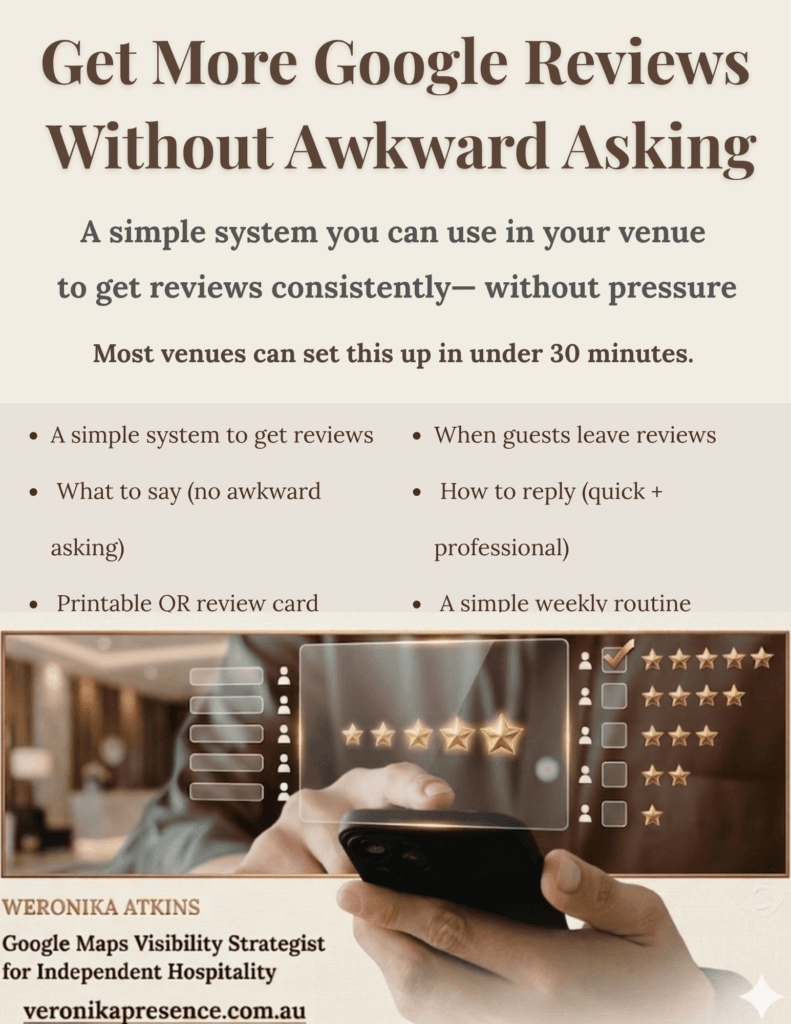
If you’d like a ready-made guide that walks you through exactly where to place your QR code, what to write alongside it, when to mention it during service, and how to build a review habit that actually sticks — I’ve put that together in one place.
The Google Review System for Hospitality Venues covers:
- How to get your review link and create your QR code
- Where to place it for maximum results (with specific suggestions by venue type)
- The exact language to use — so it never feels awkward
- How to turn this into a consistent weekly habit rather than a one-off effort
It’s a practical PDF you can read in 20 minutes and have set up the same day.
👉 Get more Google reviews without awkward asking
Do You Need Help Setting This Up?
Most restaurant owners can set up a Google review QR code themselves – and the steps above will get you there.
But sometimes the issue runs a little deeper.
If your Google profile hasn’t been properly set up, your review link might not be working correctly. If your profile is incomplete or hasn’t been maintained, a QR code will send guests to a page that doesn’t build much confidence. And if reviews are coming in but no one is responding to them, the effort of getting more reviews is only doing half the work.
That’s where restaurant review management becomes relevant – not just the QR code, but the consistent monitoring, thoughtful responses, and steady flow that keeps your profile feeling active and trustworthy over time.
If you’re not sure how your restaurant currently appears to guests on Google Maps, a fresh perspective can help.
👉 Request a free visibility check
I’ll take a look at how your profile is currently appearing and share a few practical observations — no pressure, no commitment.
Frequently Asked Questions
How do I create a QR code for Google reviews?
First, get your Google review link from your Google Business Profile – log in, find the “Ask for reviews” option, and copy the short link Google generates. Then paste that link into a free QR code tool like Canva, Adobe Express, or QR Code Generator, download the code as a PNG or PDF, and print it. The whole process takes about five minutes.
Where should I place a QR code in a restaurant?
The most effective placements are the bill folder, table cards, the counter or EFTPOS area, and takeaway packaging. The goal is to have it visible at the moment when a guest’s experience is still fresh – usually at or just after the point of payment. Always include a short, warm line of text alongside it explaining what it does.
Do QR codes increase Google reviews?
They can – but the results depend on placement and context. A QR code in the right spot, with a brief prompt alongside it and occasional natural mentions from your team, will consistently outperform one that’s just printed and placed without much thought. The QR code removes friction; the system around it is what drives consistency.
Is it free to create a Google review QR code?
Yes. There are several free tools that generate QR codes – Canva, Adobe Express, QR Code Generator, and GoQR.me are all free options. Your Google review link is also free to access through your Google Business Profile. You don’t need to pay for anything to set this up.
Weronika Atkins works with cafés, restaurants and wineries across Victoria, helping venues appear clearly and confidently on Google Maps. Learn more about her approach to hospitality visibility.
How to Get More Google Reviews for Your Restaurant
Weronika Atkins / April 1, 2026
Learn how to get more Google reviews for your restaurant with a simple, guest-friendly system. No awkward scripts – just small changes that make it easy for happy guests to leave reviews.
Pingback: How to Get More Google Reviews for Your Restaurant
Pingback: How to Ask for Google Reviews Without Sounding Pushy (Restaurant Guide)