Why Your Restaurant Menu on Google Business Profile Is Costing You Customers – and How to Fix It
Most restaurants think their menu is just… information. Something people look at if they’re already interested.
But on Google Maps, it works differently.
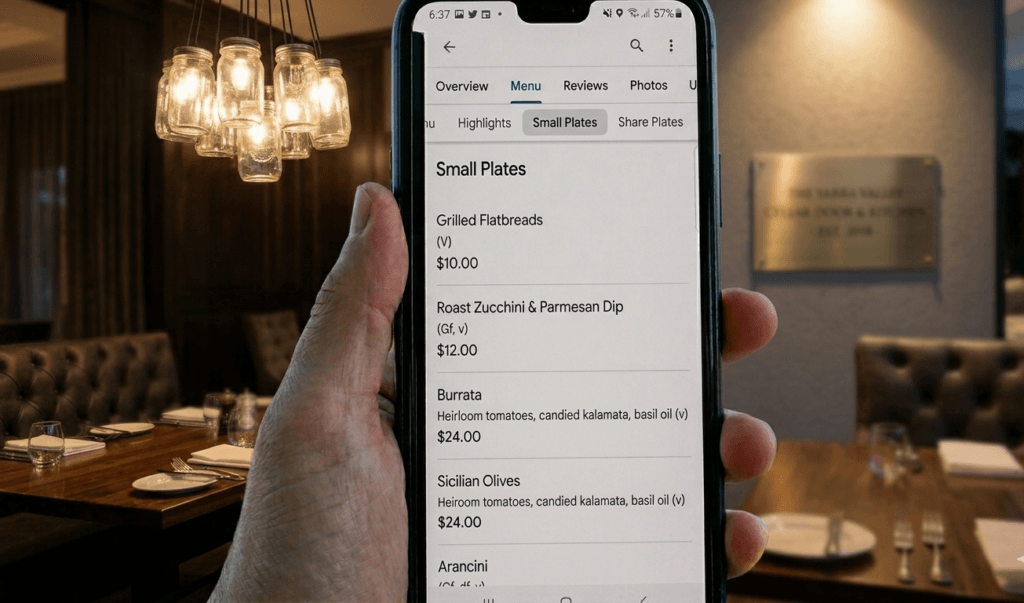
Your restaurant menu on Google Business Profile ( Google Maps) is often the final step before someone decides.
They’ve already:
- seen your photos
- checked your reviews
- confirmed you’re open
And now they’re asking:
👉 “Do I actually want to eat here?”
If your menu feels unclear, too complicated, or just doesn’t match what they’re looking for… they don’t overthink it. They simply choose another place.
This article will show you how people actually look at menus on GBP, what makes them choose one restaurant over another, and how to fix your menu so it works for you – not against you.
Why your menu matters on Google Business Profile
Your restaurant menu on your Google Business Profile section is not about attracting attention. It’s about confirming the decision.
The real behaviour looks like this:
| Step | What guests check | Why |
|---|---|---|
| 1 | Photos | First impression |
| 2 | Reviews | Is it good /safe |
| 3 | Hours | Can I go now |
| 4 | Menu | Does it fit me |
| 5 | Decision | Choose or skip |
People don’t analyse your restaurant menu on Google Business Profile carefully.
They scan it quickly.
If it feels right → they choose you
If not → they move on immediately
How people actually look at menus on Google Maps
Most people spend about 5–10 seconds on your menu.
They don’t read line by line.
They scan for signals.
They look for:
- familiar dishes
- clear pricing
- type of food (quick, casual, premium)
- portion or experience
- “does this match what I feel like?”
At the same time, they compare your restaurant menu on Google Maps with 2–3 other venues.
👉 This is how customers choose restaurant menu online – fast, emotional, low effort
What makes someone choose your restaurant from the menu
Familiar, clear dishes win
People don’t want to decode your menu.
They want to recognise something instantly.
Simple works:
- grilled chicken
- pasta
- burger
If they understand it quickly → they feel comfortable choosing.
Pricing that feels right
People don’t calculate.
They scan prices and feel:
- “this is affordable”
- “this is too expensive”
- “this feels worth it”
👉 No pricing = hesitation = lost customer
A few standout items
You don’t need a full menu here.
You need:
- 1–2 signature dishes
- a popular item
- something visually appealing
This is part of restaurant menu optimisation on Google Maps – highlighting what matters.
Menu that matches the moment
People are not just choosing food. They are choosing a moment.
| Situation | What they want |
|---|---|
| Lunch | quick, simple, affordable |
| Dinner | experience, variety |
| Coffee stop | fast and easy |
| Date night | something special |
Your Google Business Profile menu needs to reflect this clearly.
What makes people skip your menu (and your restaurant)
Missing menu
No menu = uncertainty
→ people choose somewhere else
Outdated or inaccurate menu
Wrong prices or unavailable items
→ breaks trust immediately
Hard-to-read PDFs
Zooming, scrolling, blurry text
→ people give up and move on
Too many options
Large menus create:
- confusion
- slower decisions
→ and slower decisions lose customers
Unclear or generic wording
If people don’t understand quickly, they don’t try harder.
They leave.
If your menu is unclear, outdated, or hard to read, it can quietly cost you bookings every day.
This is something I regularly fix as part of my Google Business Profile management for restaurants.
How to structure your menu for Google Maps
The restaurant menu on your Google Business Profile should be simple and focused.
Think clarity, not completeness.
Best structure:
- Lunch
- Dinner
- Drinks
Inside each section:
- 6–12 key items
- short descriptions
- clear pricing
This is one of the most effective menu on Google Maps best practices
Always think: mobile-first
👉 If you have a kids menu, make it easy to find – for many families, this is one of the first things they check, and it can decide whether they choose you or not.
Practical tips – what actually works for menus on Google Business Profile
These are not trends.
They come from real customer behaviour and how people use Google Maps.
Show prices clearly
People look for price instantly.
If pricing is missing:
- they hesitate
- they compare
- they often choose another place
Clear pricing reduces uncertainty and speeds up decisions
Example:
❌ Chicken burger
✔ Chicken burger- $18
❌ Pasta
✔ Creamy mushroom pasta – $24
Keep your menu short on Google
Your full menu doesn’t belong on Google.
People don’t read everything.
Best practice:
- show 6–12 key items per section
- highlight your most popular dishes
This improves scanning and helps people decide faster
Example:
Instead of listing 30 dishes, show:
- Margherita pizza — $20
- Pepperoni pizza — $24
- Truffle mushroom pizza — $26
- Burrata salad — $18
Clear, simple, enough to decide
Use simple, recognisable wording
Avoid:
- complex names
- “creative” descriptions that are unclear
Use:
- clear dish names
- short, helpful descriptions
If people don’t understand instantly, they move on
Example:
❌ “Seasonal garden composition with citrus reduction”
✔ “Grilled vegetables with lemon dressing”
Update your menu regularly
Google favours active profiles.
Customers notice freshness too.
Update when:
- prices change
- new dishes are added
- seasonal menu changes
Outdated menus break trust quickly
Example:
- remove dishes you no longer serve
- update prices when they change
- add seasonal items (summer salads, winter soups)
Match your menu with your photos
People compare:
- what they see in photos
- what they see in your menu
If it doesn’t match:
- confusion
- hesitation
- lost trust
👉 Consistency is a strong decision signal
Highlight 1–2 key dishes
Don’t treat all items equally.
Guide the decision.
You can:
- place best dishes at the top
- mention “popular” or “signature”
This reduces decision fatigue
Example:
- “Signature dish: Slow-cooked lamb shoulder — $32”
- “Most popular: Eggs Benedict — $19”
Make it easy to scan on mobile
Most users are on their phones.
Check your menu:
- is it readable without zooming?
- is spacing clear?
- is structure obvious?
If it’s hard to scan, people won’t try harder
Include key dietary signals
People quickly look for:
- vegetarian
- vegan
- gluten-free
Even simple labels help.
This removes friction and speeds up decisions
Example:
Veggie burger (V) — $18
Gluten-free pasta (GF) — $24
Show a kids menu (if you have one)
Families often decide based on this.
If you offer a kids menu, make it visible – it can be the deciding factor for families choosing between venues
Example:
- Kids pasta – $10
- Kids chicken nuggets – $12
This instantly signals: “family-friendly”
Use your menu together with Google Posts
Your menu should not sit there passively.
Use updates to highlight:
- new dishes
- popular meals
- seasonal items
This keeps your restaurant menu Google Maps feeling active and relevant
If you’re not sure what or how to post on Google, you can read this article: What Google Business Profile Updates Work Best for Cafés, Restaurants and Wineries?
or use my restaurant post templates to make it simple.
Best format for menus on Google Business Profile
Built-in menu section (best)
Use the native restaurant menu on Google Business Profile feature.
It works best because:
- easy to read
- structured
- fast to scan
- supports visibility
Menu photos (supporting)
Photos can support your menu.
They work when:
- clear
- well-lit
- easy to read
Good Google Maps restaurant menu examples often include simple, clean photos.
PDF menus (limitations)
PDFs should not be your main menu.
Problems:
- slow to open
- hard on mobile
- often ignored
External menu links
Useful, but secondary.
People prefer seeing everything directly in Google.
Your menu and photos need to match
This is a strong trust signal.
Your:
- menu
- food photos
must show the same reality.
If your menu feels premium
but your photos don’t match
→ people hesitate → and choose another place
Speed matters.
The faster someone understands your menu, the more likely they choose you
👉 Clear menu = fast decision
If someone understands your menu in seconds
→ they choose you
If they need to think
→ they move on
Why more options can actually reduce bookings
More choice does not mean better results.
It often creates hesitation.
| Simple menu | Large menu |
|---|---|
| fast decisions | slow decisions |
| clear | overwhelming |
| more conversions | more drop-offs |
This is one of the most overlooked parts of restaurant menu optimisation on Google Business Profile.
Your menu sets expectations – and shapes your reviews
Your restaurant menu on Google Maps is where people quietly decide what to expect.
They’re not just looking at food – they’re thinking:
- how much will I spend
- what kind of experience this will be
If what they see doesn’t match what they get, it usually leads to disappointment- and that often shows up in reviews.
A clear and accurate menu helps avoid that.
It:
- sets the right expectations
- attracts the right customers
- reduces confusion before they even arrive
When people feel like they got what they expected, they’re much more likely to leave a positive review.
👉 (You can read more here: how to get more Google reviews for restaurants)
Using Google Posts to highlight your menu
Very few restaurants use this well.
You can stand out by posting:
- new dishes
- seasonal items
- popular meals
- pairing ideas
- reviews mentioning specific dishes
👉 This supports your restaurant menu on google maps and keeps your profile active.
If you’re not sure what or how to post on Google, you can read this article: What Google Business Profile Updates Work Best for Cafés, Restaurants and Wineries?
Simple checklist – what a strong Google Maps menu includes
✔ clear sections (lunch, dinner, drinks – not one long list)
✔ easy to scan in seconds (short lines, no clutter)
✔ pricing visible on every item (no guessing)
✔ 6–12 key dishes per section (not your full menu)
✔ simple, familiar dish names (easy to recognise instantly)
✔ updated regularly (no outdated items or prices)
✔ matches your food photos (no disconnect)
✔ highlights 1–2 popular or signature dishes
✔ readable on mobile without zooming
Common mistakes restaurants make with menus on Google Maps
- ❌ no menu at all → customers don’t want to guess – they choose another place
- ❌ only using a PDF menu → too slow, hard to read on mobile, often ignored
- ❌ outdated items or prices→ breaks trust immediately and creates hesitation
- ❌ unclear or overly creative wording → if people don’t understand quickly, they move on
- ❌ too many items (full menu uploaded) → overwhelming → slower decisions → lost customers
- ❌ menu doesn’t match photos → creates confusion and doubt
- ❌ no pricing visible → adds friction → people compare and leave
All of these quietly cost you customers.
Final thought – your menu doesn’t attract, it confirms
Your menu is not marketing. It’s the final decision point. People already want to choose.
Your job is to:
- remove doubt
- make it easy
- match their expectations
FAQ — Restaurant Menu on Google Maps
Where is the menu on Google Business Profile?
The menu on your Google Business Profile appears directly on your listing in Google Search and Google Maps. On mobile, it is usually visible as a “Menu” tab or within the profile sections alongside photos, reviews, and updates. Depending on your category and setup, it may also show as highlights or links within the main profile view. This is where customers quickly check what you offer before deciding.
How do I create my restaurant menu on Google Business Profile?
To create your restaurant menu on Google Business Profile, you need to add it through your profile editing panel. Go to your Business Profile in Google Search, click “Edit profile”, then open the Menu section. From there, you can create menu groups such as lunch, dinner, or drinks, and add individual items with names, descriptions, and prices. This built-in menu is the best option because it is structured, easy to read, and designed for mobile users.
How do I change my menu on Google Business Profile?
To update your menu, go to your Business Profile, click “Edit profile”, and open the Menu section. You can edit existing items, update prices, remove dishes, or add new ones. Changes usually appear shortly after saving. It’s important to keep your menu accurate and up to date, as customers rely on this information when making a decision.
How do I remove a menu from Google Business Profile?
To remove a menu, go to your Business Profile, open “Edit profile”, then go to the Menu section and delete the menu items or sections you no longer want. If your menu is added as a website link, you can remove or change it in the website or menu URL field. If it appears as photos, you can delete those from your photo gallery. Keep in mind that having no menu at all can reduce trust and make customers more likely to choose another venue.
How do customers choose a restaurant menu online?
Customers don’t read menus in detail when browsing Google Maps. They usually scan quickly, looking for familiar dishes, clear pricing, and something that matches what they feel like at that moment. They often compare two or three restaurants at the same time and make a decision within seconds. This is why clarity, simplicity, and structure matter much more than having a long or detailed menu.
Should I use a PDF menu on Google Business Profile?
You can use a PDF menu, but it is not the best option. PDFs are often slow to open, difficult to read on mobile, and require extra effort from the user. Most customers prefer to see the menu directly on your Google Business Profile without needing to click away. A better approach is to use the built-in menu for clarity and speed, and keep a PDF only as a secondary option if needed.
Not sure how your menu looks to customers?
I can show you exactly how your restaurant appears on Google Maps — from a real guest’s perspective.
👉 Request a visibility check
or
👉 Fix it yourself with a simple step-by-step guide
This is one of the simplest changes you can make – and one of the most powerful.
Weronika Atkins is a Google Business Profile specialist working with hospitality venues across Melbourne and regional Victoria. Read more about my approach.
READ NEXT
Why Your Restaurant Isn’t on Google Maps? And How to Fix It Fast
How tourists choose restaurants on Google Maps in regional Victoria